Car Rental Tracker
Bookings, deposits, expenses and fleet availability in one workbook
About this template
Run a rental fleet from one workbook: log every booking, track deposits and balance payments, record expenses per car and see which cars are free each day. Monthly and annual reports show income, expense and profit by car.
- Booking log with automatic booking IDs, duration, subtotal and payment status
- Deposit collection, balance payments and refunds tracked per booking
- Expense log by car, category and supplier
- Availability calendar that flags possible double bookings
- Monthly and annual reports with income, expense and profit per car
- Three Intake forms: bookings, payments and expenses
A look inside
Real tabs from the workbook, filled with demo data. Select a screenshot to enlarge it.
How the workbook fits together
You type into three places: Setup (once) and the three Form Responses tabs (every day). A few extra columns go into the Booking Log and Expense Log. Everything else is calculated for you.
1 · Once
2 · Every day, you type
3 · Logs fill in
4 · Read results
How to read the cells
- ✎InputWhite cells. Type, or pick from a dropdown.
- autoAuto-calculatedGrey cells hold formulas. Don't type here.
- KPISummaryLight-blue boxes show report totals.
- SelectorWhite box in the title banner. Pick a month or year.
Above each column header, a small label reads ✎ input or auto. Each tab also has an Instruction panel on the right; click the ( – / + ) button to show or hide it.
Step by step
Set up your fleet once, then log every booking, payment and expense. The calendar and reports build themselves from what you enter.
1Set up your fleet and lists🚗 1. SetupDo once
Every dropdown in the workbook reads from these lists, so fill them in before anything else. Replace the demo rows (K101-DEMO101 and so on) with your own.
| List | What to enter | Example |
|---|---|---|
| Plate Number | A unique code for each car. This is the code you'll pick everywhere else. | K101-ABC1234 |
| Car Name | Model, colour and year, so you know which physical car it is. | PERODUA AXIA 1.0 G 2015 |
| Currency | Your currency symbol. It appears beside every amount. | RM |
| Expense Category | Your expense types, up to 10. | Petrol, Repair - Parts |
| Supplier Name | Workshops and shops you pay. | Bengkel Ah Seng |
| Payment Method | How money is paid or received. | Internet Banking, Touch and Go |
| Sales Agent | Staff who close bookings. | Aina |
Once you start logging bookings, avoid renaming a car code. Old rows keep the old code and will stop matching in the calendar and reports.
2Record a new booking🚗 Booking Form ResponsesEach booking
- Go to the first empty row of Booking Form Responses. Use one row per booking. If you use the booking form, rows are added for you.
- Fill each column from left to right as in the table below.
- Type every date as month/day/year.
5/3/2026means 3 May 2026.
| Column | What to enter | Example |
|---|---|---|
| Timestamp | When the booking was recorded. | 1/1/2025 13:49 |
| Name | Customer's full name. | Aisyah Boon Huat |
| Contact | Phone number or email. | 010-3631648 |
| Car | The car code, exactly as written in Setup. | K144-DEMO144 |
| Booking Date | The day the customer booked. | 1/1/2025 |
| Pickup Date / Hour | When the customer collects the car. | 1/3/2025 · 3:30 PM |
| Return Date / Hour | When the car comes back. | 1/8/2025 · 3:30 PM |
| Daily Rate (RM) | Price per day. | 250 |
| Other Fee (RM) | Extra charges such as delivery or a penalty. Enter 0 if none. | 50 |
| Total Amount (RM) | Daily Rate × days + Other Fee. | 1300 |
| Deposit Amount (RM) | The security deposit you collect. | 300 |
Days are counted as Return Date minus Pickup Date, with a minimum of 1. In the example, 3 Jan to 8 Jan is 5 days: 250 × 5 + 50 = RM 1,300.
3Complete the booking in the Booking Log🚗 2. Booking LogEach booking
Your new booking appears here on its own, with a Booking ID. You only add three things.
| Column | Cell | What happens |
|---|---|---|
| IC No / Passport No | You type | Customer's IC or passport number. |
| Sales Agent | Dropdown | Pick the agent who closed the booking (list from Setup). |
| Notes | You type | Anything worth remembering, such as a child seat or a fuel note. |
| Booking ID | Auto | Built from the booking month: B2501-1004 is the 4th booking of January 2025. |
| Duration, Subtotal, Total | Auto | Calculated from the dates, Daily Rate and Other Fee. |
| Amount Paid, Payment Status | Auto | Updated from the payments you record in step 4. |
Subtotal = Daily Rate × Duration (Days)
Total Amount = Subtotal + Other Fee
4Record deposits, payments and refunds🚗 Payment Form ResponsesEach payment
- Copy the Booking ID from the Booking Log, for example
B2501-1002. - Add one row in Payment Form Responses for every amount that clears your bank: the deposit, each balance payment, and the deposit refund.
- Pick the Payment Category from the dropdown so the money lands in the right column.
| Column | What to enter | Example |
|---|---|---|
| Timestamp | When you recorded it. | 1/1/2025 10:30 |
| Date | Bank clearance date of the payment. | 1/1/2025 |
| Booking ID | Exactly as shown in the Booking Log. | B2501-1002 |
| Payment Method | How the money moved. | MasterCard |
| Payment Category | Dropdown: Deposit Collection, Balance Payment or Deposit Refund. | Deposit Collection |
| Payment Amount (RM) | The amount, as a positive number. | 200 |
| Entry No., Lookup Key, Entry Check | Auto Leave blank. Entry Check shows ⚠ if the Booking ID isn't found. |
Each booking has room for 1 deposit, 2 balance payments and 1 deposit refund. A third balance payment for the same booking won't show up, so combine it with the second if needed.
5Check deposits and payment status🚗 2.1 Deposits & RefundsReview only
Nothing to type here. Every booking is listed with the payments you recorded in step 4, grouped into Deposit Collected, Balance Payment 1, Balance Payment 2 and Deposit Refund. A blank block means there is no matching payment row yet. The Booking Log then shows one of three statuses:
Fully PaidPartially PaidNot Paid
6Record an expense🚗 Expenses Form Responses, then 🚗 3. Expense LogEach expense
- Add one row per expense in Expenses Form Responses.
- Open 3. Expense Log. The expense is already there. Fill in the last three white columns.
| Column | Where | What to enter | Example |
|---|---|---|---|
| Date | Form Responses | Expense date, month/day/year. | 1/1/2025 |
| Expense Category | Form Responses | A category from Setup. | Petrol |
| Car Name | Form Responses | Car code exactly as in Setup. | K152-DEMO152 |
| Expense Amount (RM) | Form Responses | Cost of this item. | 50 |
| Invoice No. / Date | Form Responses | From the supplier's invoice. | INV-10001 · 1/1/2025 |
| Supplier Name | Form Responses | A supplier from Setup. | Supplier 5 |
| Individual / Total Amount | Form Responses | The line amount and the invoice total. | 50 · 50 |
| Payment method | Expense Log | Dropdown How you paid. | Internet Banking |
| Payment Date | Expense Log | The day you paid. | 1/2/2025 |
| Notes / Description | Expense Log | Optional details. | Front tyres |
7Check which cars are free🚗 4. Availability CalendarAnytime
- Pick the month and year in the white boxes in the title banner.
- Read across each car's row. The calendar uses Pickup Date and Return Date only, not the hours.
- Booked that day
- Possible double booking. Check the Booking Log.
- Free
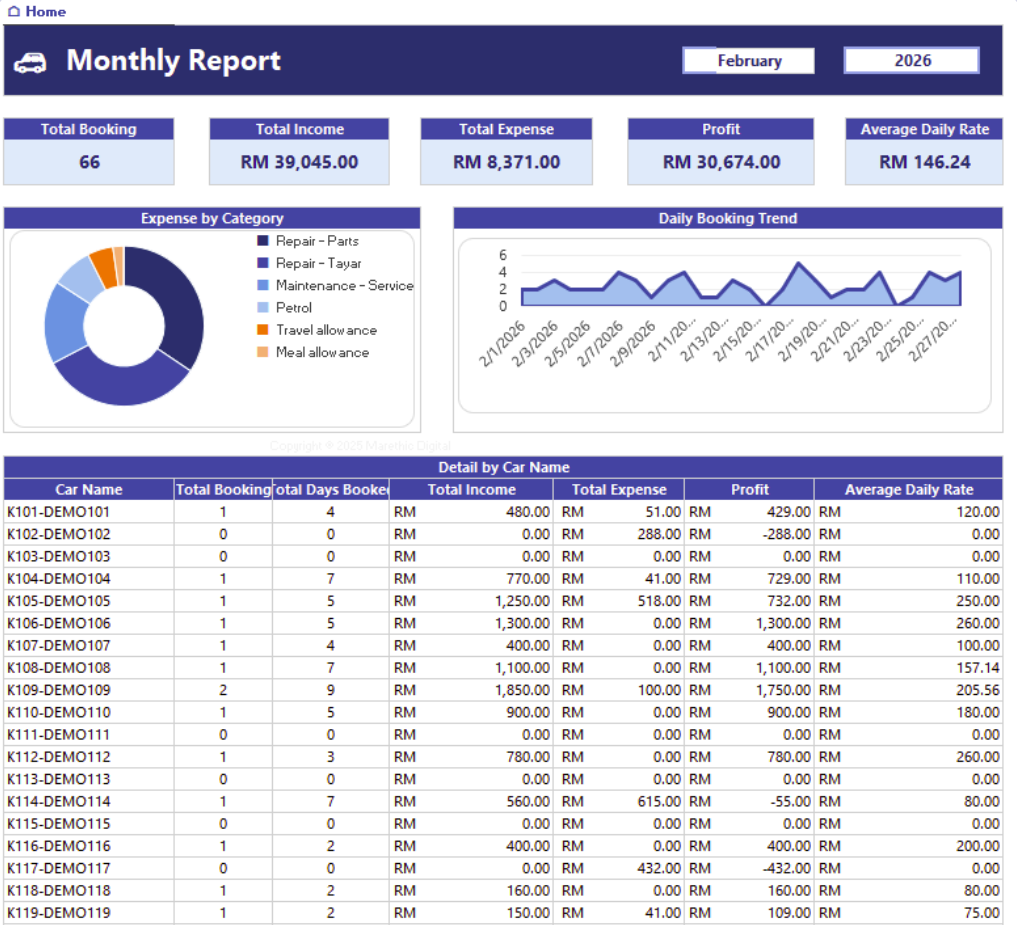
8Review the month🚗 5. Monthly ReportMonth end
Pick a month and year in the banner. Bookings count by Booking Date and expenses by Expense Date.
| Box | How it's worked out |
|---|---|
| Total Booking | Number of unique Booking IDs in the month. |
| Total Income | Sum of Amount Paid in the Booking Log. |
| Total Expense | Sum of Expense Amount in the Expense Log. |
| Profit | Total Income − Total Expense. |
| Average Daily Rate | Total Income ÷ Total Days Booked. |
9Review the year🚗 6. Annual ReportYear end
Pick a year in the banner. You get the same five totals for the whole year, an income and expense chart by month, and tables by month and by car.
Good to know
Do
- Fill in Setup first.
- Type car codes exactly as they appear in Setup.
- Type dates as month/day/year.
- Copy Booking IDs from the Booking Log rather than retyping them.
Don't
- Type in grey (auto) cells.
- Delete or rename the DONT DELETE Helper Tab or any Form Responses tab.
- Insert or delete columns in the logs.
If something looks wrong
My booking doesn't show in the calendar or report
Check that the dates are real dates in month/day/year, not text, and that the Car code matches Setup exactly, including dashes and capitals.
A payment isn't showing in Deposits & Refunds
Look at the Entry Check column in Payment Form Responses. A ⚠ means the Booking ID doesn't match the Booking Log. Also confirm the Payment Category is one of the three dropdown options.
The calendar shows a red day
Two bookings overlap for the same car on that date. Find both in the Booking Log and change the car or dates on one of them.
Payment Status says Partially Paid
Amount Paid is below the Total Amount. Record the remaining balance as a Balance Payment in Payment Form Responses.
Connects with

Beta integrations work today and may change. Planned ones are not available yet.
What's inside
- 1🚗 0. Home
- 2🚗 1. Setup
- 3🚗 2. Booking Log
- 4🚗 2.1 Deposits & Refunds
- 5🚗 3. Expense Log
- 6🚗 4. Availability Calendar
- 7🚗 5. Monthly Report
- 8🚗 6. Annual Report
- 9🚗 Booking Form Responses
- 10🚗 Payment Form Responses
- 11🚗 Expenses Form Responses
Intake forms
Share a link for each form and every answer is filed as a new row in that form’s tab. Connect Google once and rows are written into your Google Sheet as they arrive; for Excel, export or copy them across.
New booking · fills “🚗 Booking Form Responses”
- NameRequired
- ContactRequired
- CarRequired
- Booking DateRequired
- Pickup DateRequired
- Pickup HourRequired
- Return DateRequired
- Return HourRequired
- Daily Rate (RM)Required
- Other Fee (RM)
- Total Amount (RM)Required
- Deposit Amount (RM)
Record a payment · fills “🚗 Payment Form Responses”
- DateRequired
- Booking IDRequired
- Payment MethodRequired
- Payment CategoryRequired
- Payment Amount (RM)Required
Record an expense · fills “🚗 Expenses Form Responses”
- DateRequired
- Expense CategoryRequired
- Car NameRequired
- Expense Amount (RM)Required
- Invoice No.
- Invoice Date
- Supplier Name
- Individual Total (RM)Required
- Total Amount (RM)Required
Included with Car Rental Pro. You decide who can fill them in with access codes. How Intake works
Included with every template
- No macros or VBASafe to open under strict IT policies.
- Protected formulasInputs are editable; logic is locked.
- DocumentedA 'Start here' tab explains every input.
- Free updatesNew versions land in your library.
Questions about this template
What do I pay?
There are three ways to get it. Template only: $29, paid once, as Google Sheets. Car Rental Pro: $29 today for the Google Sheets copy with its Intake forms set up, which includes your first 30 days; after that $29 a month, or $290 a year, until you cancel. Enterprise: arranged with sales. If you cancel Car Rental Pro, the copy stays yours and the forms stop taking entries. If you buy the template first, you can add Car Rental Pro later without paying for the template again.
Which apps does it work in?
Google Sheets. Excel is coming soon.
Can I change the template?
Yes. Input cells are unlocked, and you can remove the protection from formula cells if you need to adapt the logic. Updates we publish later will not include your changes.
How do I get it after buying?
It appears under My templates straight after checkout: make your own copy of the Google Sheet. With Car Rental Pro, a set-up page also links each form to its tab.